

Hosted Payment Page
Introduction
The Hosted Payment Page integration provides a simple and secure way to accept online payments with minimal development effort. Using this integration type, you can display a list of available payment methods configured on your MyFatoorah account, allowing your customers to select their preferred method and complete the transaction through a secure hosted page.
Supported Payment Methods:
All payment methods are supported (Cards [Visa, Mastercard, Mada, AMEX], Apple Pay, Google Pay, etc.).
Enable Payment MethodsTo enable payment methods on your Live account, please contact your Account Manager.
To enable payment methods on your Demo account, kindly send a request to [email protected] .
API VersionAlways use the /v3/endpoint for this integration.
For example: https://apitest.myfatoorah.com/v3/payments
How It Works
The Hosted Payment Page integration can be completed in one API call. The process involves three main steps:
Step 1: Display Available Payment Methods
First, retrieve the payment methods enabled for your MyFatoorah account using the GET Payment Methods endpoint. Use the response to display the available payment options to your customers in your application's checkout interface. Use the ApiName of the selected payment method when creating the payment request.
NOTEYou do not need to call this endpoint for every payment. You can call it once, store the retrieved payment methods on your side, and use the stored information when creating the payment request in the next step.
Step 2: Create a Payment Request
You need to send a POST request to /v3/payments with the selected payment method and order details.
This request will return a PaymentUrl, which you should use to redirect your customer to the hosted payment page.
Endpoint: POST /v3/payments (Create Payment)
{
    "PaymentMethod": "CARD",
    "Order": {
        "Amount": 23
    },
    "IntegrationUrls": {
         "Redirection": "https://your-website.com/payment-callback"
    }
}
{
"IsSuccess": true,
"Message": "",
"ValidationErrors": null,
"Data": {
"InvoiceId": "6148108",
"PaymentId": null,
"PaymentURL": "https://demo.MyFatoorah.com/KWT/ie/050754719614810863-ce9138bf",
"PaymentCompleted": false,
"TransactionDetails": null
}
}After receiving the PaymentURL, redirect your customer to the PaymentURL to complete the payment on the MyFatoorah-hosted page.
Step 3: Inquire Payment Status
After the payment is completed, MyFatoorah will redirect the customer to your Redirection URL (the one provided in Step 2) and append a paymentId as a query parameter.
Example: https://your-website.com/payment-callback?paymentId=100201923790872553
You should then call the GET/v3/payments/{paymentId} endpoint (Get Payment Details) to check the payment status and get the full invoice and transaction details.
GET /v3/payments/07076148071303658773{
"IsSuccess": true,
"Message": "",
"ValidationErrors": null,
"Data": {
"Invoice": {
"Id": "6389491",
"Status": "PAID",
"Reference": "2025060917",
"CreationDate": "2025-12-24T14:48:17.1230000Z",
"ExpirationDate": "2026-06-22T14:48:17.1230000Z",
"ExternalIdentifier": null,
"UserDefinedField": "",
"MetaData": null
},
"Transaction": {
"Id": "102585",
"Status": "SUCCESS",
"PaymentMethod": "VISA/MASTER",
"PaymentId": "07076389491322460173",
"ReferenceId": "535814102585",
"TrackId": "24-12-2025_3224601",
"AuthorizationId": "102585",
"TransactionDate": "2025-12-24T14:51:06.5630000Z",
"ECI": "02",
"IP": {
"Address": "41.35.105.183",
"Country": "Egypt"
},
"Error": {
"Code": "",
"Message": ""
},
"Card": {
"NameOnCard": "das",
"Number": "512345xxxxxx0008",
"Token": "",
"PanHash": "b888aa5f23a817883d4d12c74044bab1ae6ee65dc8d6e11515394aba452b273b",
"ExpiryMonth": "12",
"ExpiryYear": "34",
"Brand": "Mastercard",
"Issuer": "Test Bank",
"IssuerCountry": "KWT",
"FundingMethod": "credit"
}
},
"Customer": {
"Reference": "",
"Name": "Anonymous",
"Mobile": "+201020304050",
"Email": "[email protected]"
},
"Amount": {
"BaseCurrency": "KWD",
"ValueInBaseCurrency": "20",
"ServiceCharge": "0.4",
"ServiceChargeVAT": "0.06",
"ReceivableAmount": "19.54",
"DisplayCurrency": "KWD",
"ValueInDisplayCurrency": "20",
"PayCurrency": "KWD",
"ValueInPayCurrency": "20"
},
"Suppliers": []
}
}
WebhookWe recommended enabling the Webhook feature to automatically notify your system when a transaction status changes in your application.
Sequence Diagram
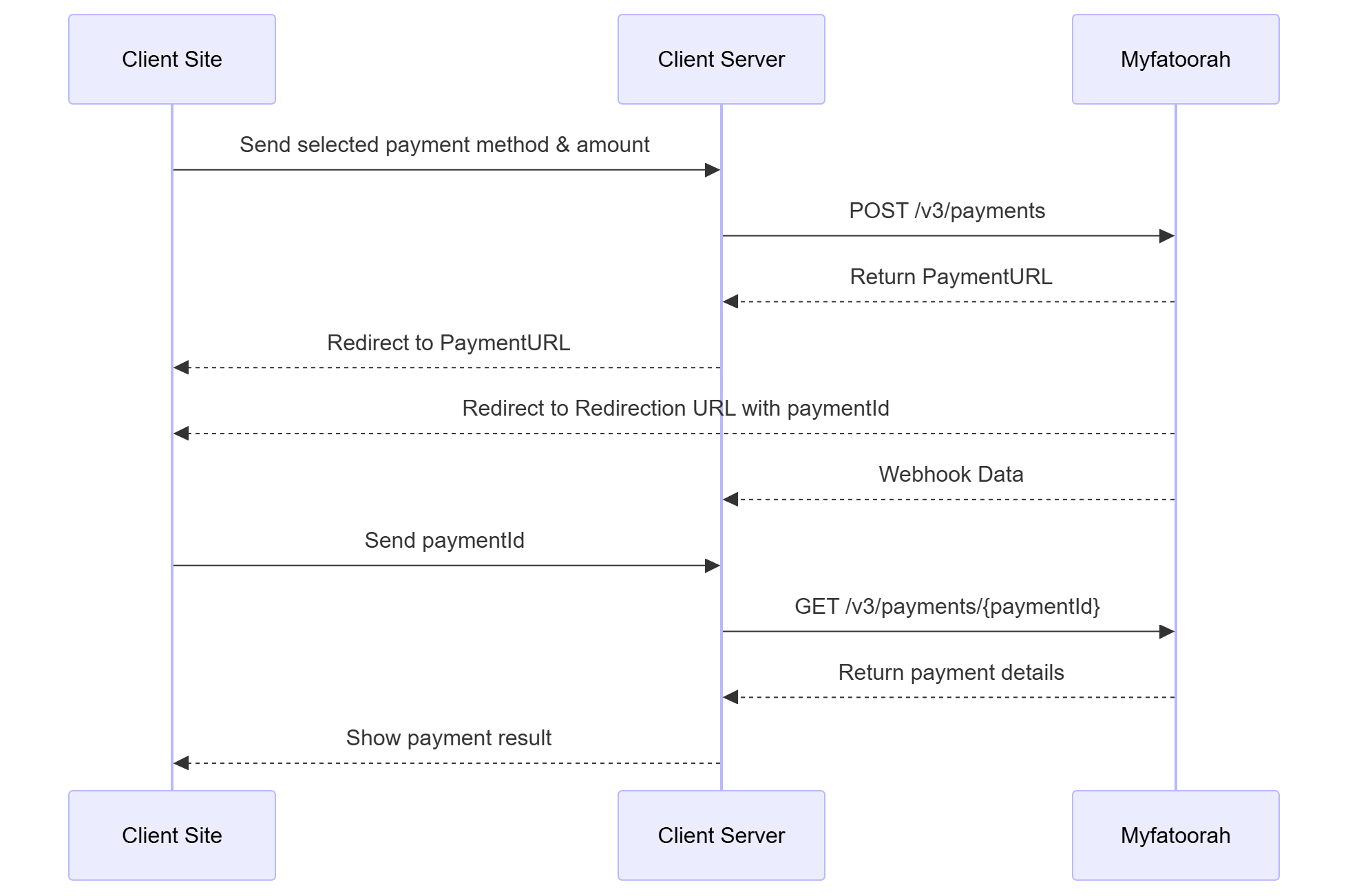
Hosted Payment Page integration
Updated 2 months ago